What's New?
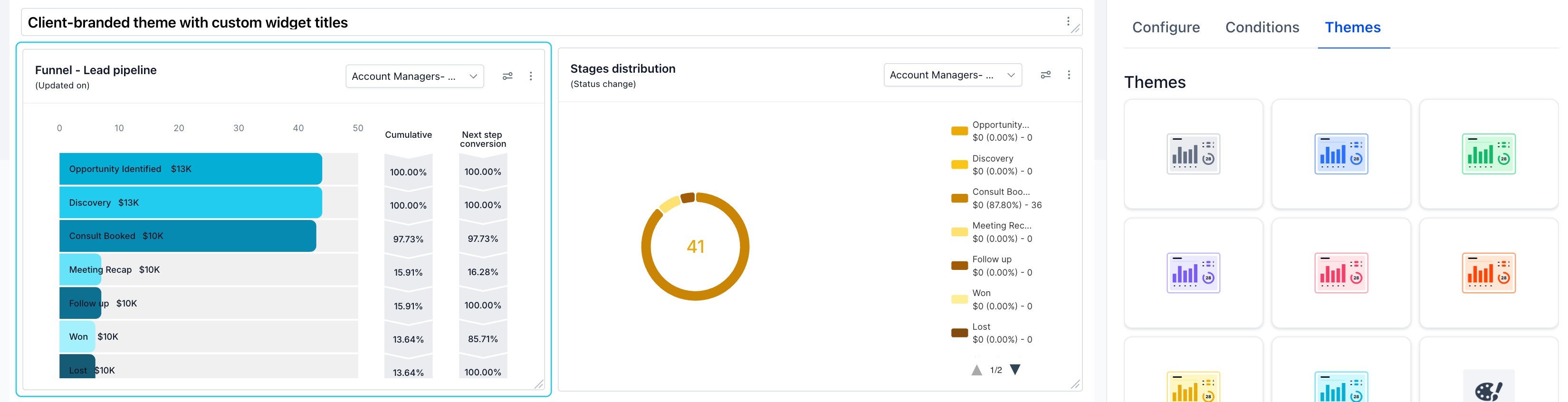
- General Widgets on your account dashboard are now fully editable — configure what data each widget shows, add permanent filters, set custom date ranges, compare performance across periods, rename widgets, apply themes, and duplicate or delete them
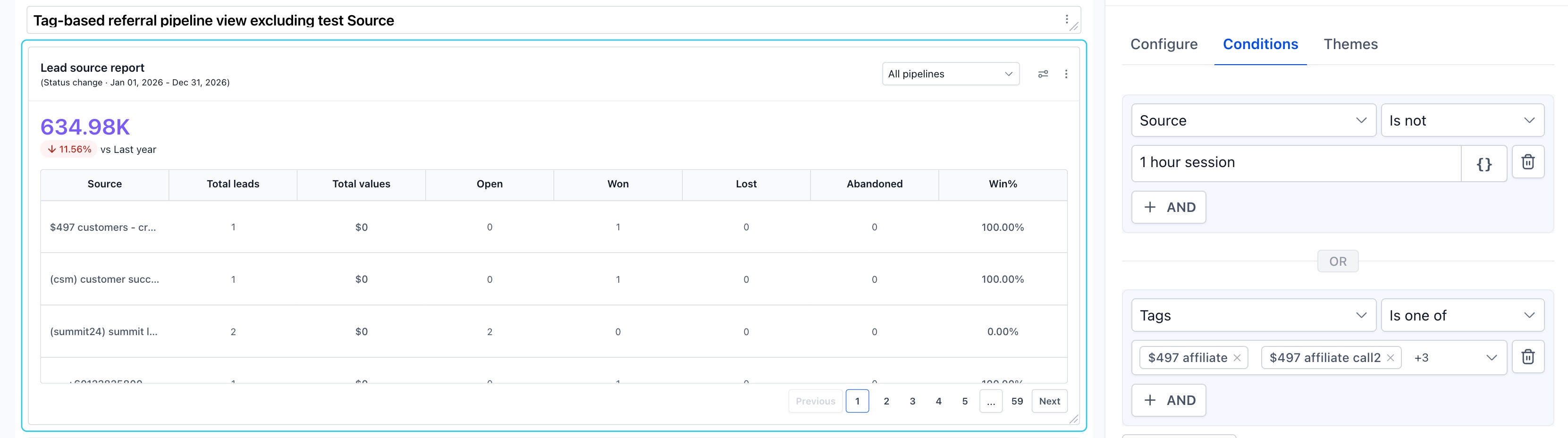
- New Conditions tab lets you permanently filter any general widget by assigned user, tags, source, lead value, custom fields, and attribution — filters persist every time the dashboard is opened
- Date range override lets you lock a widget to a specific time period, independent of the dashboard-level date filter
- Date property and date range are now shown explicitly on each widget face so you always know what time period you are looking at
- Comparison mode lets you see current period vs last year or last period directly on the widget
How It Works:
- Go to Dashboard and click Edit dashboard (top right)
- Hover over any general widget and click the three-dot menu (⋮) → select Edit
- In the Configure tab — edit the widget title and set a date range override under Advanced Settings
- In the Conditions tab — add permanent data filters by selecting a field, operator, and value
- In the Themes tab — apply a visual theme to match your branding
- Click Save — your configuration persists every time the dashboard opens

Why It Matters:
- Your dashboard, your data— stop seeing everyone's numbers every time you open the dashboard. Set Assigned user = Logged in user once, and every team member automatically sees only their own performance.
- Trusted numbers— the widget face now shows exactly which date property and date range it is calculating on, so two similar widgets showing different numbers no longer create confusion.
- Client-ready dashboards— rename widgets to client-friendly language, apply a matching theme, and duplicate widgets per segment. Turn a generic dashboard into one that feels built specifically for your client.
- Permanent segmentation without rebuilding— use custom fields, tags, or source conditions to permanently scope a widget to a specific segment. No more manual filtering every session.
- Year-over-year visibility— lock a widget to This Year with comparison vs Last Year. Every time your client opens the dashboard, they see their growth story at a glance.
What's Next?
- Configure what's shown in Funnel and Manual Actions widgets
- Dashboard Quick Filter support for general widgets
Notes:
- Pipeline is available as a runtime filter on the widget face and is not included in Conditions.
- Condition fields available vary by widget type and the module it belongs to (Opportunities, Email, Contacts, etc.).
- General widgets do not currently respond to dashboard-level Quick Filters.
- Full guide and use cases: Configure and Filter General Widgets
Was this article helpful?
That’s Great!
Thank you for your feedback
Sorry! We couldn't be helpful
Thank you for your feedback
Feedback sent
We appreciate your effort and will try to fix the article